Windows 10 Support Is Ending — What It Means for You and Your Computer | Mac-PC Assist Tech Briefs
Windows • Security • Upgrades
Windows 10 Support Is Ending — What It Means for You and Your Computer

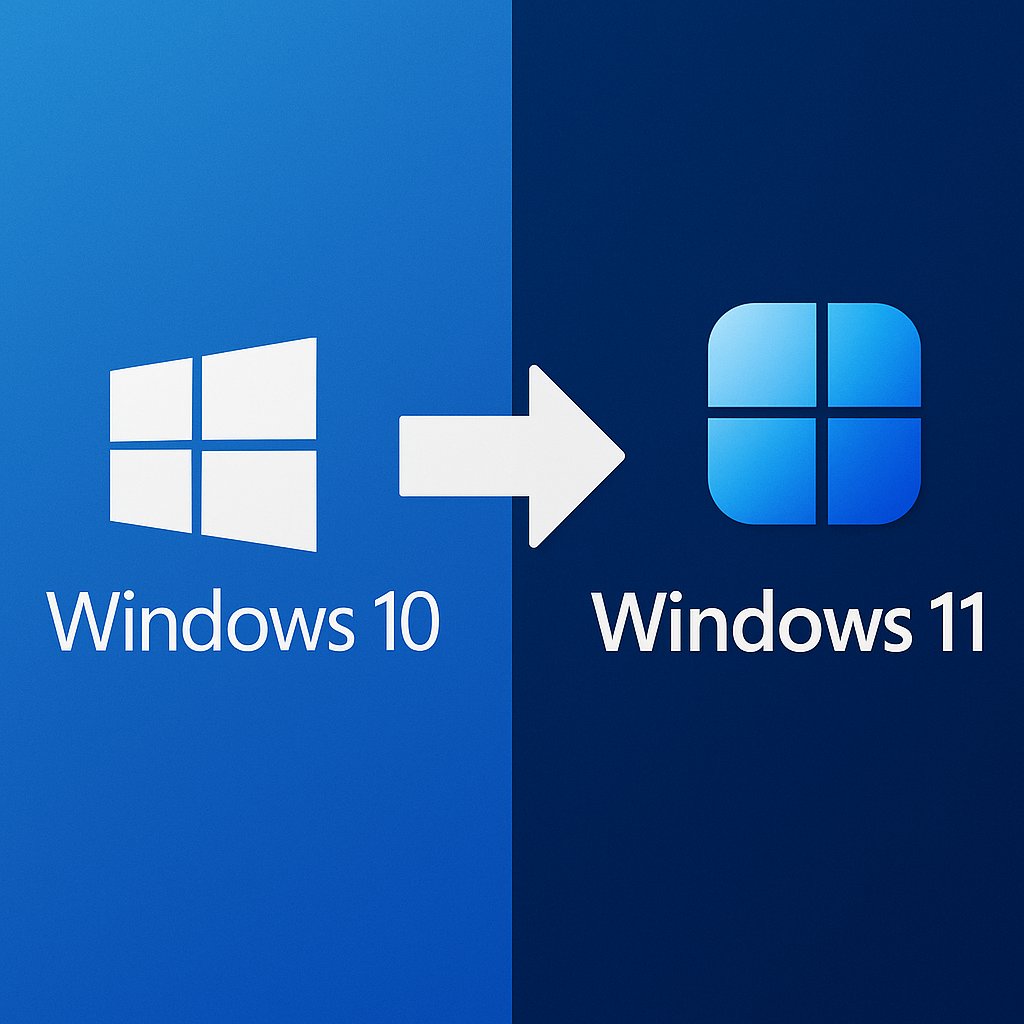
Windows 10 may keep running for a little while longer, but Windows 11 is the path forward—and depending on your hardware, upgrading may mean purchasing a new computer. Here’s how to plan the transition without panic (or rushed buying).
Windows 10 isn’t gone yet—but the clock is ticking
Over the course of the past 18 months, Microsoft has been making the direction pretty clear: Windows 10 is moving toward end-of-support. Even after a deadline is announced, Windows 10 often continues to run “fine” for a period of time, especially for users who value stability.
The key difference is usable versus supported. When support ends, security fixes slow down, vulnerabilities remain unpatched, and software vendors gradually stop testing against the older operating system. That’s where odd issues start showing up—browser problems, software incompatibilities, and higher risk from modern threats.
We’ve been here before: Windows 7 to Windows 10
Many of my clients have had this experience before. Windows 7 didn’t suddenly stop working when it reached end-of-life— but the world around it changed. Security expectations rose, software demands increased, and eventually the ecosystem moved on.
Sigh.
I’ve been in the computer industry since 1987, officially taking my first consulting job to set up an Epson computer with two floppy disks and a 10MB hard drive. The pace of change and improvements does not slow down. If anything, it accelerates.
Windows 11 is an upgrade, not just a new look
Windows 11 isn’t just Windows 10 with a redesigned Start menu. Under the hood, it’s built to take advantage of modern processors, improved firmware security, and fast storage. On a newer system, the result is typically better responsiveness and better protection.
On older hardware, though, the upgrade can be limited—or not possible at all. That’s where many people discover that their “OS upgrade” is really a hardware decision.
Minimum hardware we recommend for Windows 11
In the real world, the best Windows 11 experience comes from systems that aren’t merely scraping by, but are properly equipped for browser-heavy workloads, video conferencing, security tools, and constant updates.
- 16GB RAM minimum (more if you multitask heavily)
- 1TB SSD (storage fills up faster than most people expect)
- Modern Intel chipsets tend to work best for compatibility and driver support
Can Windows 11 run on less? Sometimes. But “can” and “should” are different. Borderline systems often lead to slow performance, longer boot times, and a steady stream of small issues that cost more than they save.
When an “upgrade” really means a new computer
For some users, moving from Windows 10 to Windows 11 will be simple. For others—especially those on older laptops and desktops— Windows 11 requirements make upgrading impractical.
Windows 11 leans hard on newer security and firmware capabilities. Those protections are a big reason Windows 11 is worth moving to, but they also explain why certain older systems can’t make the jump cleanly.
The best plan is to evaluate what you have now, identify which machines can upgrade smoothly, and schedule replacements for the ones that can’t—on your timeline, not during an emergency.
Windows 10 vs. Windows 11: Feature comparison and compatibility notes
| Feature Category | Windows 10 | Windows 11 | Compatibility Notes |
|---|---|---|---|
| User Interface | Classic Start menu, traditional layout | Modern Start menu, Fluent Design | Older graphics hardware may struggle with UI effects |
| Security | Windows Defender, BitLocker | Enhanced Defender + hardware-based security | Some protections require newer CPUs/firmware |
| File Sharing | NTFS, SMB 2.0 | NTFS, SMB 3.0, improved encryption | Older environments may have limitations with SMB 3.0 |
| Remote Work | RDP, basic performance tuning | Improved Remote Desktop performance | Best gains appear on newer hardware |
| Storage | Basic SSD support | Optimized for SSD/NVMe usage | SSD strongly recommended (NVMe ideal) |
What to do next (without panic)
If you’re still running Windows 10, you don’t need to panic. A stable, properly maintained Windows 10 machine can continue to function for a little while longer. But ignoring the transition entirely is rarely the cheapest approach.
The smarter strategy is planning: evaluate your current computers, decide which ones can upgrade to Windows 11 cleanly, and budget for replacement systems before you’re forced into a rushed decision.